Top Tools to Split and Separate Text Instantly
I am Vivan Mehta, a dedicated SEO expert with 5 years of experience in digital marketing. Known for my strategic approach to search engine optimization, I excel at enhancing online visibility and driving organic traffic for businesses.
In today’s digital world, handling text efficiently is more important than ever. Whether you are managing large documents, cleaning data, or preparing content for social media, you often need to split and organize text quickly. Doing this manually can take hours, and mistakes are easy to make. Thankfully, there are many tools available that can help you split and separate text instantly, saving you time and effort.
In this guide, we will explain everything you need to know about text splitting and separation, and introduce some of the top tools you can use today.
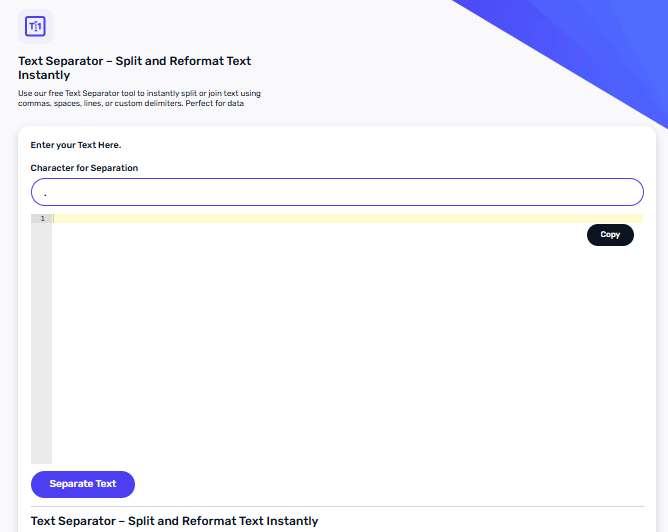
What Is Text Splitting and Separation?
Before we jump into tools, it’s important to understand what text splitting and separation really mean. While the two terms are related, they are not exactly the same.
Definition of Text Splitting
Text splitting is the process of breaking a large block of text into smaller, manageable parts. For example, you might have a paragraph of 500 words, and you want to split it into individual sentences or smaller chunks for easier reading. Text splitting can also apply to dividing a list of items or addresses into separate lines.
Definition of Text Separation
Text separation refers to organizing text based on certain criteria, like commas, spaces, or line breaks. For example, if you have a CSV file with names and email addresses in one column, separating them into two columns is a form of text separation. It helps make data organized and easy to use.
Benefits of Using Text Splitting Tools
Using text splitting and separation tools can bring many advantages:
Saves time and effort – No need to manually break or organize large text.
Reduces errors – Automated tools reduce the chance of mistakes.
Better organization – Makes large blocks of text readable and structured.
Supports data processing – Essential for spreadsheets, emails, and coding tasks.
Factors to Consider Before Choosing a Text Splitting Tool
Not all tools are created equal. Before you pick a tool, you should consider these factors:
Ease of Use and User Interface
Some tools are very simple and beginner-friendly, while others require technical knowledge. Make sure the tool you choose has an interface that is easy to navigate.
Supported Formats
Check whether the tool supports the file format you want to split. Some tools only work with plain text (.txt), while others can handle CSV, Excel, or Word documents.
Speed and Efficiency
A good text splitting tool should be fast, especially when working with large files. Some tools may slow down with big data, so efficiency is key.
Free vs. Paid Versions
Many tools are free but may have limitations, while premium versions often offer extra features like batch processing or cloud storage. Choose the one that fits your needs and budget.
Integration with Other Software
If you work with multiple platforms, consider tools that integrate easily with Excel, Google Sheets, or coding environments. This will save extra steps in your workflow.
Top Tools to Split and Separate Text Instantly
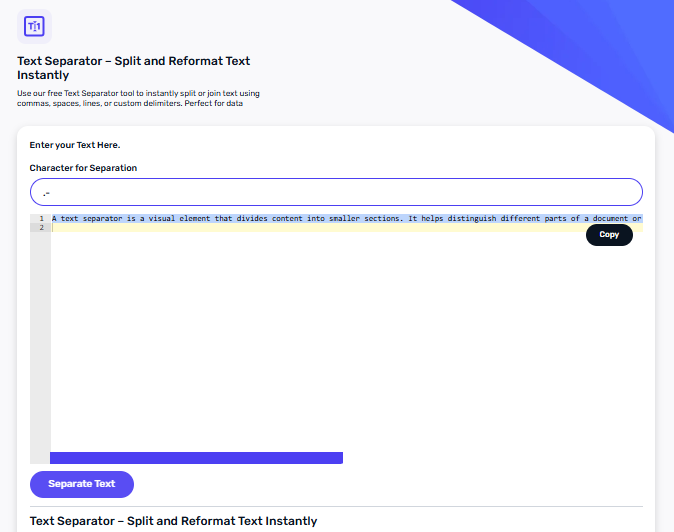
Here are some of the best tools available to split and separate text instantly. We will explain how each works, their features, and pros and cons.
1. TextMechanic
Overview and Main Features: TextMechanic is an online platform that provides many text manipulation tools. It is simple to use and works directly in your browser. You can split text by lines, commas, spaces, or custom characters.
How to Use:
Go to the TextMechanic website.
Paste your text into the input box.
Choose the type of split you want (e.g., by line, by character, by delimiter).
Click “Process” and get your text separated instantly.
Pros:
Free to use
No installation required
Supports multiple split options
Cons:
Works best online, so no offline version
Limited formatting options
2. Split CSV
Overview and Main Features: Split CSV is a tool specifically designed for CSV and spreadsheet files. It allows you to split columns, separate values, and export them into new files.
How to Use:
Upload your CSV file.
Select the column you want to split.
Choose the delimiter (comma, semicolon, or custom).
Download the separated output.
Pros:
Great for large spreadsheets
Fast and reliable
Easy to download processed files
Cons:
Only works with CSV files
Limited advanced options
3. Online Text Tools
Overview and Unique Features: Online Text Tools is a platform offering a wide range of text operations, including splitting, reversing, counting, and formatting text. You can use multiple tools in one place without installing anything.
How to Use:
Open the Online Text Tools website.
Paste your text into the tool.
Choose “Split Text” and pick your delimiter.
Copy or download the output.
Pros:
Multiple text operations in one place
Free to use
No account required
Cons:
Internet connection required
Interface can be overwhelming for beginners
4. Notepad++ with Plugins
Overview: Notepad++ is a free text editor for Windows that supports plugins for advanced text manipulation. Using plugins like TextFX and CSV Tools, you can split and separate text efficiently.
How to Use:
Install Notepad++ on your computer.
Install the required plugins (TextFX, CSV Tools).
Open your text file and use the plugin options to split lines, columns, or characters.
Pros:
Powerful for technical users
Supports large files
Offline use
Cons:
Slight learning curve for beginners
Plugin installation needed
5. Excel or Google Sheets
Overview: Spreadsheet software like Excel and Google Sheets has built-in functions to split text, such as “Text to Columns” and the SPLIT function. These are ideal for structured data like lists or email addresses.
How to Use in Excel:
Open your spreadsheet.
Select the column with text.
Go to Data > Text to Columns.
Choose your delimiter and finish the wizard.
How to Use in Google Sheets:
Use the SPLIT function in a new column: =SPLIT(A1, ",")
The text in cell A1 will separate based on the comma delimiter.
Pros:
Works well with structured data
No additional tools needed
Supports multiple file formats
Cons:
Limited for unstructured text
Some formulas can be tricky for beginners
6. Advanced Code-Based Tools (Python & Scripts)
Overview: If you work with large amounts of data or need automation, coding solutions like Python scripts can split and separate text efficiently. Libraries like Pandas and Regex allow precise control over text manipulation.
Example Using Python:
import pandas as pd
# Load CSV file
data = pd.read_csv("data.csv")
# Split a column by comma
data[['First Name', 'Last Name']] = data['Full Name'].str.split(',', expand=True)
# Save the output
data.to_csv("output.csv", index=False)
Pros:
Highly customizable
Handles large files and automation
Ideal for technical users
Cons:
Requires coding knowledge
Not suitable for casual users
Tips to Get the Most Out of Text Splitting Tools
Even the best tools work better if you follow some simple tips:
Backup your text before splitting: Mistakes happen, so always keep a copy of the original file.
Choose the right delimiter: Commas, spaces, tabs, or custom characters must match your text structure.
Test tools with a sample first: Before processing large files, test the tool with a small sample to ensure accuracy.
Combine multiple tools: For complex tasks, using two or more tools together can save time and improve results.
Common Mistakes to Avoid When Splitting Text
Many beginners make simple mistakes when splitting text. Here’s what to watch out for:
Ignoring hidden characters or spaces: Extra spaces or invisible characters can affect the split.
Not checking formatting consistency: Mixed formats (e.g., commas in some rows, semicolons in others) can create errors.
Overlooking data integrity: Always double-check that no data is lost during the split.
Conclusion
Splitting and separating text is a task that can save you hours if done correctly. With the right tools, you can handle large documents, clean data, and prepare content efficiently. From simple online platforms like TextMechanic to advanced code-based solutions like Python, there is a tool for every need and skill level.
By understanding the basics of text splitting and separation, considering your requirements, and choosing the right tools, you can make your work faster, easier, and more accurate. Start using these tools today and experience the benefits of organized, clean, and well-structured text!